<?xml version="1.0" encoding="utf-8"?><feed xmlns="http://www.w3.org/2005/Atom" ><generator uri="https://jekyllrb.com/" version="4.4.1">Jekyll</generator><link href="http://docxtor.de/feed.xml" rel="self" type="application/atom+xml" /><link href="http://docxtor.de/" rel="alternate" type="text/html" /><updated>2026-05-18T21:05:00+02:00</updated><id>http://docxtor.de/feed.xml</id><title type="html">Docxtor - Batch convert your iWork documents</title><subtitle>Batch convert your iWork™ documents to Microsoft Office™ or PDF format. Just drop your files and folders in the app and hit convert!</subtitle><author><name>(c) Martin Kolb 2018-2026</name></author><entry><title type="html">Batch iWork Conversion: How to Do It Fast</title><link href="http://docxtor.de/mainpost/2026/05/15/batch-iwork-conversion-EN.html" rel="alternate" type="text/html" title="Batch iWork Conversion: How to Do It Fast" /><published>2026-05-15T11:00:00+02:00</published><updated>2026-05-15T11:00:00+02:00</updated><id>http://docxtor.de/mainpost/2026/05/15/batch-iwork-conversion-EN</id><content type="html" xml:base="http://docxtor.de/mainpost/2026/05/15/batch-iwork-conversion-EN.html"><![CDATA[<p>Those who work on a Mac usually appreciate the elegance of Pages, Numbers, and Keynote. However, in everyday work life, when exchanging data with Windows users, or during archiving, you often face a problem: hundreds of documents need to be converted into Microsoft Office formats (.docx, .xlsx, .pptx) or PDF.</p>

<p>Opening and exporting each file individually is not an option for large quantities – it is simply a waste of time. In this guide, we’ll show you how to master the mass conversion of iWork documents efficiently.</p>

<h3 id="the-challenge-why-export-isnt-always-enough">The Challenge: Why “Export…” Isn’t Always Enough</h3>

<p>The standard path via “File &gt; Export To” is perfect for a single document. However, if you have an entire project archive with 50 Pages documents and 20 Numbers spreadsheets in front of you, you’ll spend hours with repetitive clicks. For teams and businesses, this is a significant productivity killer.</p>

<h3 id="method-1-applescript-and-automator-for-the-tech-savvy">Method 1: AppleScript and Automator (For the Tech-Savvy)</h3>

<p>macOS offers powerful tools with AppleScript and Automator to automate tasks. You can create a script that instructs Pages to open all files in a folder and save them as Word documents.</p>

<p><strong>Advantages:</strong> Free, as it is included in macOS.
<strong>Disadvantages:</strong> Requires programming knowledge, is prone to errors with different file versions, and does not offer a simple user interface.</p>

<h3 id="method-2-the-professional-solution-with-docxtor">Method 2: The Professional Solution with Docxtor</h3>

<p>For those looking for a reliable, fast, and easy-to-use solution, <strong>Docxtor</strong> was developed. It is the specialist tool for mass conversion on the Mac.</p>

<p><strong>The Decisive Advantage: Preserving Folder Structure</strong>
Unlike simple converters, Docxtor can process entire folder hierarchies. If you drag a main folder with many subfolders into the app, Docxtor recreates exactly that structure in the target directory. All converted files end up exactly where they belong.</p>

<p><strong>How Mass Conversion Works with Docxtor:</strong></p>
<ol>
  <li><strong>Select Files:</strong> Drag as many files or complete folders as you like into Docxtor.</li>
  <li><strong>Set Format:</strong> Choose the desired target format (e.g., Office or PDF).</li>
  <li><strong>Preserve Structure:</strong> Enable the “Rebuild folder structure” option to maintain your organization.</li>
  <li><strong>Start:</strong> Click “Convert”. Docxtor processes the list in the background while you can attend to other tasks.</li>
</ol>

<h3 id="why-batch-conversion-is-important-for-teams">Why Batch Conversion Is Important for Teams</h3>

<p>Especially when migrating from Mac to PC, leaving an agency, or preparing documents for clients, automated conversion not only saves time but also reduces the error rate. No file is forgotten, and the consistency of the formats is guaranteed.</p>

<h3 id="conclusion">Conclusion</h3>

<p>Batch conversion doesn’t have to be complicated. While native tools are sufficient for very simple automations, <strong>Docxtor</strong> provides the necessary power and ease of use for professional users. Save yourself the manual exports and let the software do the work.</p>

<p><em>Docxtor supports Pages, Numbers, and Keynote and converts them lightning-fast into Word, Excel, PowerPoint, or PDF – locally on your Mac, without cloud compulsion.</em></p>]]></content><author><name>(c) Martin Kolb 2018-2026</name></author><category term="mainpost" /><summary type="html"><![CDATA[Those who work on a Mac usually appreciate the elegance of Pages, Numbers, and Keynote. However, in everyday work life, when exchanging data with Windows users, or during archiving, you often face a problem: hundreds of documents need to be converted into Microsoft Office formats (.docx, .xlsx, .pptx) or PDF.]]></summary></entry><entry><title type="html">Massenkonvertierung iWork: So geht’s schnell</title><link href="http://docxtor.de/mainpost/2026/05/15/massenkonvertierung-iwork-so-gehts-schnell.html" rel="alternate" type="text/html" title="Massenkonvertierung iWork: So geht’s schnell" /><published>2026-05-15T11:00:00+02:00</published><updated>2026-05-15T11:00:00+02:00</updated><id>http://docxtor.de/mainpost/2026/05/15/massenkonvertierung-iwork-so-gehts-schnell</id><content type="html" xml:base="http://docxtor.de/mainpost/2026/05/15/massenkonvertierung-iwork-so-gehts-schnell.html"><![CDATA[<p>Wer auf dem Mac arbeitet, schätzt meist die Eleganz von Pages, Numbers und Keynote. Doch im Arbeitsalltag, beim Datenaustausch mit Windows-Nutzern oder bei der Archivierung steht man oft vor einem Problem: Hunderte von Dokumenten müssen in Microsoft Office-Formate (.docx, .xlsx, .pptx) oder PDF umgewandelt werden.</p>

<p>Jede Datei einzeln zu öffnen und zu exportieren, ist bei großen Mengen keine Option – es ist schlichtweg Zeitverschwendung. In diesem Guide zeigen wir Ihnen, wie Sie die Massenkonvertierung von iWork-Dokumenten effizient meistern.</p>

<h3 id="die-herausforderung-warum-exportieren-nicht-immer-reicht">Die Herausforderung: Warum “Exportieren…” nicht immer reicht</h3>

<p>Der Standardweg über “Ablage &gt; Exportieren” ist für ein einzelnes Dokument perfekt. Wenn Sie jedoch ein ganzes Projektarchiv mit 50 Pages-Dokumenten und 20 Numbers-Tabellen vor sich haben, verbringen Sie Stunden mit repetitiven Klicks. Für Teams und Unternehmen ist dies ein erheblicher Produktivitätskiller.</p>

<h3 id="methode-1-applescript-und-automator-für-technik-affine">Methode 1: AppleScript und Automator (Für Technik-Affine)</h3>

<p>macOS bietet mit AppleScript und dem Automator mächtige Werkzeuge, um Aufgaben zu automatisieren. Sie können ein Skript erstellen, das Pages anweist, alle Dateien in einem Ordner zu öffnen und als Word-Dokument zu speichern.</p>

<p><strong>Vorteile:</strong> Kostenlos, da in macOS enthalten.
<strong>Nachteile:</strong> Erfordert Programmierkenntnisse, ist fehleranfällig bei verschiedenen Dateiversionen und bietet keine einfache Benutzeroberfläche.</p>

<h3 id="methode-2-die-professionelle-lösung-mit-docxtor">Methode 2: Die professionelle Lösung mit Docxtor</h3>

<p>Für alle, die eine zuverlässige, schnelle und einfach zu bedienende Lösung suchen, wurde <strong>Docxtor</strong> entwickelt. Es ist das Spezialwerkzeug für die Massenkonvertierung auf dem Mac.</p>

<p><strong>Der entscheidende Vorteil: Erhalt der Ordnerstruktur</strong>
Im Gegensatz zu einfachen Konvertern kann Docxtor ganze Ordnerhierarchien verarbeiten. Wenn Sie einen Hauptordner mit vielen Unterordnern in die App ziehen, baut Docxtor genau diese Struktur im Zielverzeichnis nach. Alle konvertierten Dateien landen genau dort, wo sie hingehören.</p>

<p><strong>So funktioniert die Massenkonvertierung mit Docxtor:</strong></p>
<ol>
  <li><strong>Dateien auswählen:</strong> Ziehen Sie beliebig viele Dateien oder komplette Ordner per Drag &amp; Drop in Docxtor.</li>
  <li><strong>Format festlegen:</strong> Wählen Sie das gewünschte Zielformat (z.B. Office oder PDF).</li>
  <li><strong>Struktur bewahren:</strong> Aktivieren Sie die Option “Ordnerstruktur nachbilden”, um Ihre Organisation beizubehalten.</li>
  <li><strong>Starten:</strong> Klicken Sie auf “Konvertieren”. Docxtor arbeitet die Liste im Hintergrund ab, während Sie sich anderen Aufgaben widmen können.</li>
</ol>

<h3 id="warum-batch-konvertierung-für-teams-wichtig-ist">Warum Batch-Konvertierung für Teams wichtig ist</h3>

<p>Besonders bei der Migration von Mac auf PC, beim Verlassen einer Agentur oder beim Vorbereiten von Dokumenten für Kunden spart die automatisierte Konvertierung nicht nur Zeit, sondern reduziert auch die Fehlerquote. Es wird keine Datei vergessen, und die Konsistenz der Formate ist gewährleistet.</p>

<h3 id="fazit">Fazit</h3>

<p>Massenkonvertierung muss nicht kompliziert sein. Während native Bordmittel für sehr einfache Automatisierungen ausreichen, bietet <strong>Docxtor</strong> die nötige Power und Benutzerfreundlichkeit für professionelle Anwender. Sparen Sie sich die manuellen Exporte und lassen Sie die Software die Arbeit erledigen.</p>

<p><em>Docxtor unterstützt Pages, Numbers und Keynote und wandelt diese blitzschnell in Word, Excel, PowerPoint oder PDF um – lokal auf Ihrem Mac, ohne Cloud-Zwang.</em></p>]]></content><author><name>(c) Martin Kolb 2018-2026</name></author><category term="mainpost" /><summary type="html"><![CDATA[Wer auf dem Mac arbeitet, schätzt meist die Eleganz von Pages, Numbers und Keynote. Doch im Arbeitsalltag, beim Datenaustausch mit Windows-Nutzern oder bei der Archivierung steht man oft vor einem Problem: Hunderte von Dokumenten müssen in Microsoft Office-Formate (.docx, .xlsx, .pptx) oder PDF umgewandelt werden.]]></summary></entry><entry><title type="html">Keynote zu PowerPoint: Die 3 besten Methoden für Mac [DE]</title><link href="http://docxtor.de/mainpost/2026/05/15/keynote-to-powerpoint-DE.html" rel="alternate" type="text/html" title="Keynote zu PowerPoint: Die 3 besten Methoden für Mac [DE]" /><published>2026-05-15T10:00:00+02:00</published><updated>2026-05-15T10:00:00+02:00</updated><id>http://docxtor.de/mainpost/2026/05/15/keynote-to-powerpoint-DE</id><content type="html" xml:base="http://docxtor.de/mainpost/2026/05/15/keynote-to-powerpoint-DE.html"><![CDATA[<p>Keynote ist zweifellos ein mächtiges Werkzeug für beeindruckende Präsentationen auf dem Mac. Doch in der Geschäftswelt ist Microsoft PowerPoint nach wie vor der Standard. Wenn Sie Ihre Keynote-Dateien (.key) mit Kollegen teilen müssen, die Windows nutzen, oder wenn die Ziel-Hardware nur PowerPoint unterstützt, ist eine Konvertierung unumgänglich.</p>

<p>In diesem Artikel stellen wir Ihnen die drei besten Methoden vor, wie Sie Keynote in PowerPoint umwandeln können – von der integrierten Lösung bis hin zur effizienten Batch-Konvertierung.</p>

<h3 id="methode-1-die-klassische-export-funktion-in-keynote">Methode 1: Die klassische Export-Funktion in Keynote</h3>
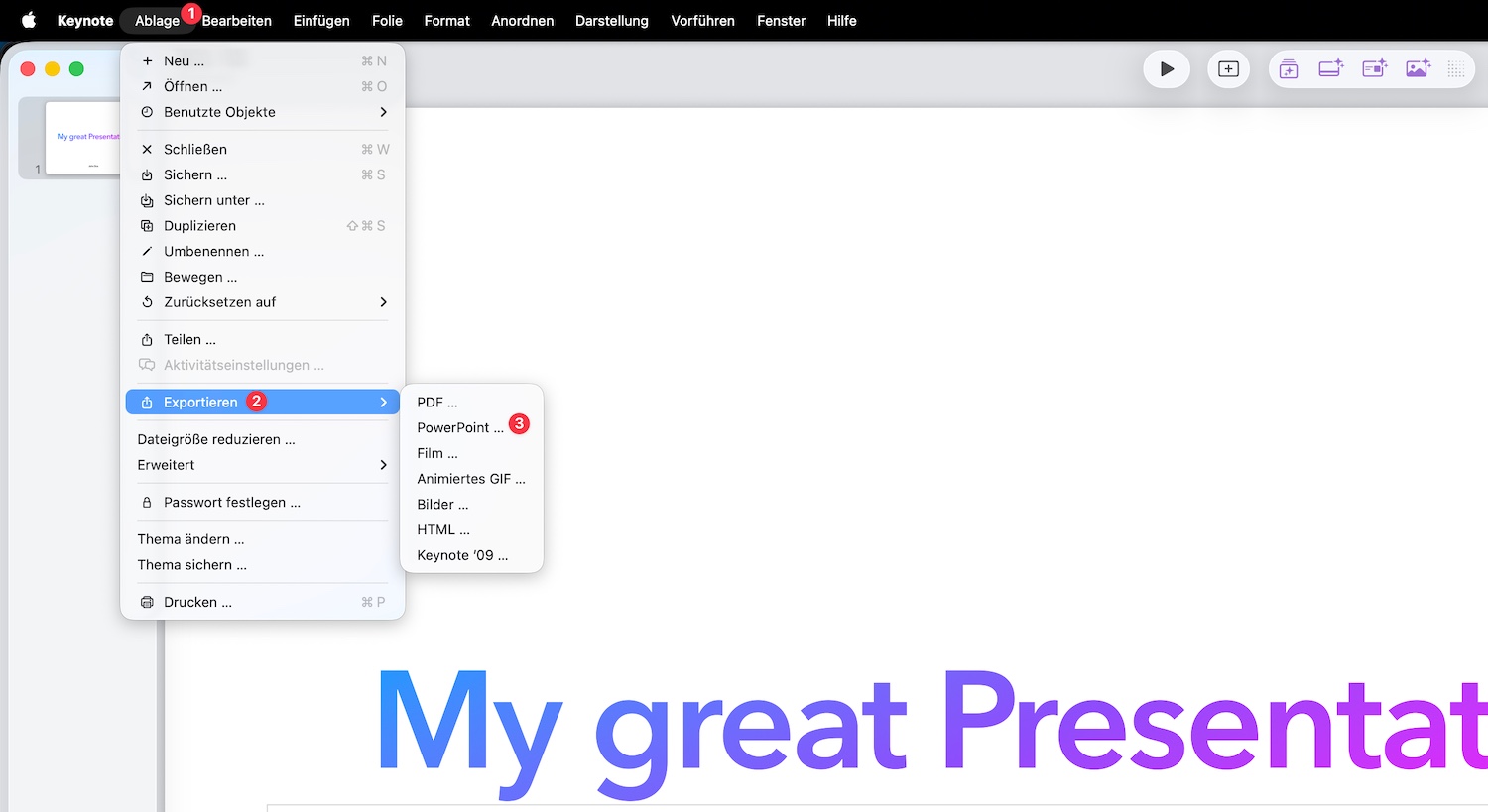
<p><img src="/assets/img/keynote_to_powerpoint/keynote_export_to_powerpoint.jpg" alt="Screenshot: Die klassische Export-Funktion in Keynote" />
Die naheliegendste Methode ist der direkte Export aus der Keynote-App selbst. Apple hat diese Funktion direkt integriert, was für einzelne Dateien ideal ist.</p>

<p><strong>Schritt-für-Schritt:</strong></p>
<ol>
  <li>Öffnen Sie Ihre Präsentation in <strong>Keynote</strong>.</li>
  <li>Gehen Sie in der Menüleiste auf <strong>Ablage &gt; Exportieren &gt; PowerPoint…</strong>.</li>
  <li>Wählen Sie im Reiter “PowerPoint” bei Bedarf unter “Erweiterte Optionen” das Format (.pptx oder das ältere .ppt) aus.</li>
  <li>Klicken Sie auf <strong>Weiter…</strong>, vergeben Sie einen Dateinamen und wählen Sie den Speicherort.</li>
  <li>Bestätigen Sie mit <strong>Exportieren</strong>.</li>
</ol>

<p><strong>Vorteil:</strong> Keine zusätzliche Software nötig, hohe Qualität.
<strong>Nachteil:</strong> Zeitaufwendig, wenn Sie viele Dateien einzeln bearbeiten müssen.</p>

<h3 id="methode-2-konvertierung-über-icloud-für-unterwegs">Methode 2: Konvertierung über iCloud (für unterwegs)</h3>
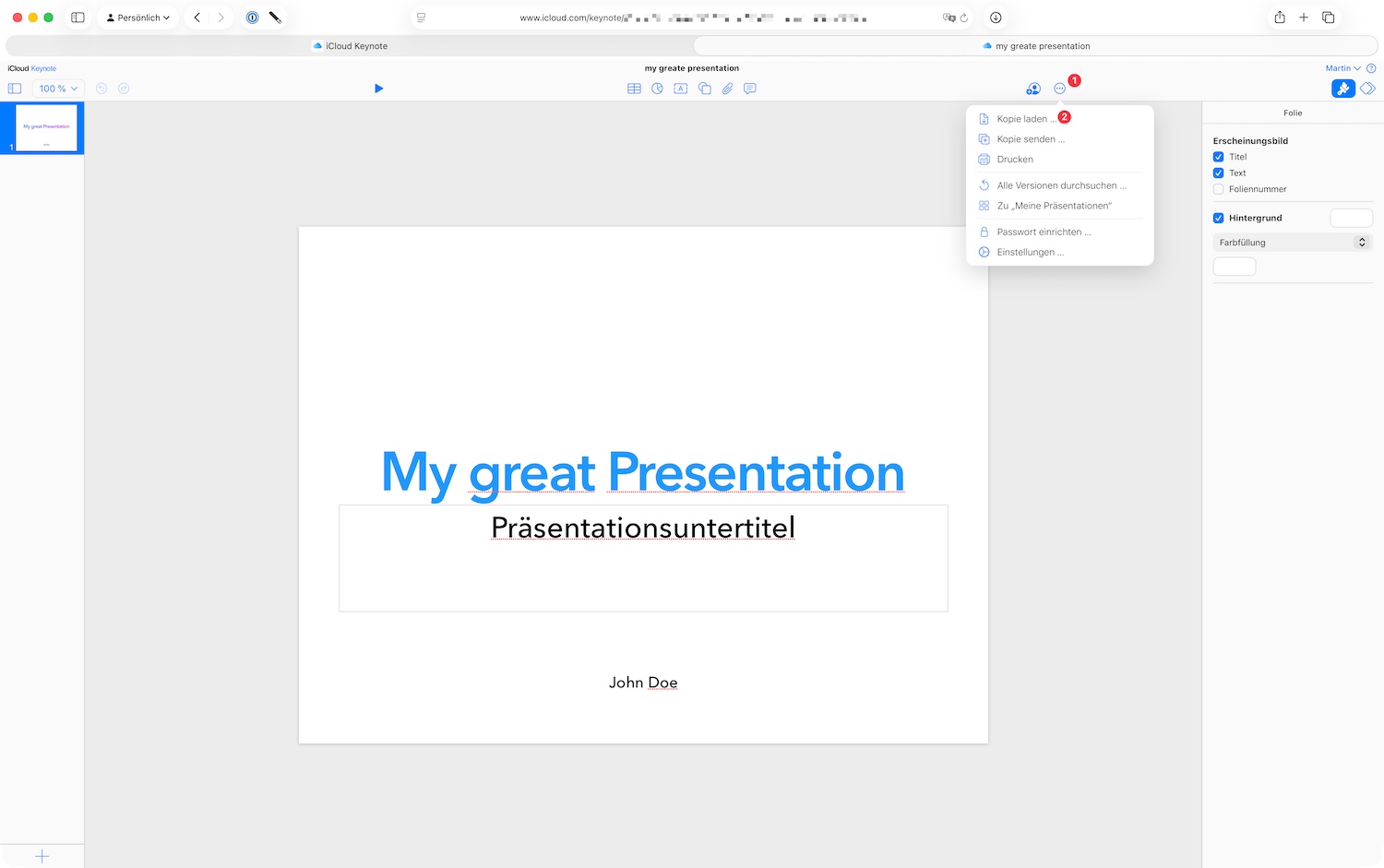
<p><img src="/assets/img/keynote_to_powerpoint/icloud_export_to_powerpoint.jpg" alt="Screenshot: Konvertierung in icloud" />
Falls Sie gerade nicht an Ihrem eigenen Mac sitzen oder die Keynote-App nicht installiert haben, bietet iCloud.com eine hervorragende browserbasierte Lösung.</p>

<p><strong>Schritt-für-Schritt:</strong></p>
<ol>
  <li>Melden Sie sich auf <strong>iCloud.com</strong> mit Ihrer Apple-ID an.</li>
  <li>Öffnen Sie die <strong>Keynote-Web-App</strong>.</li>
  <li>Laden Sie Ihre .key-Datei hoch, indem Sie sie in das Fenster ziehen.</li>
  <li>Klicken Sie auf das <strong>Mehr-Symbol (drei Punkte)</strong> auf der Miniaturansicht der Datei.</li>
  <li>Wählen Sie <strong>Kopie laden…</strong> und klicken Sie auf <strong>PowerPoint</strong>.</li>
</ol>

<p><strong>Vorteil:</strong> Funktioniert auf jedem Betriebssystem im Browser.
<strong>Nachteil:</strong> Internetverbindung erforderlich, Upload-Zeiten bei großen Dateien.</p>

<h3 id="methode-3-effiziente-batch-konvertierung-mit-docxtor">Methode 3: Effiziente Batch-Konvertierung mit Docxtor</h3>
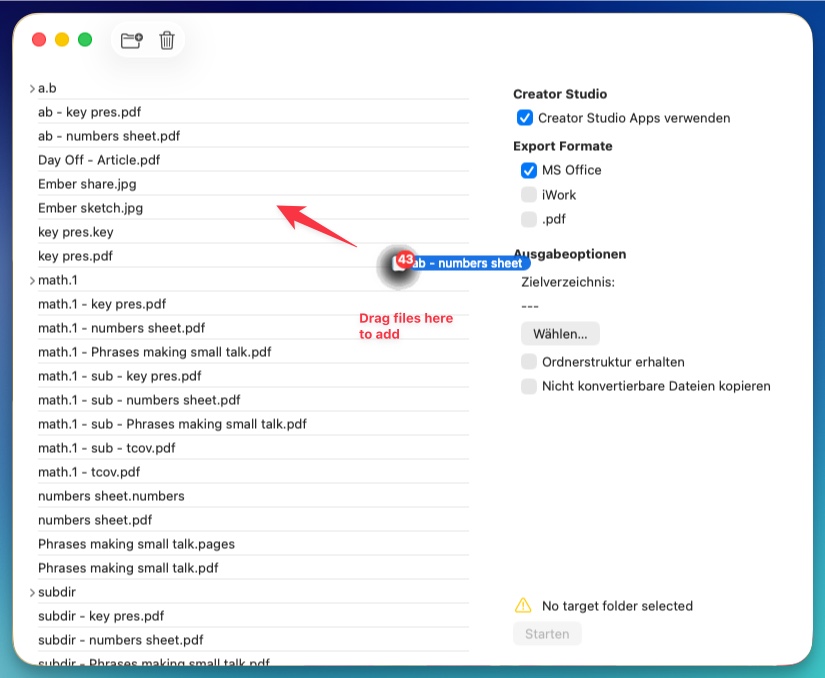
<p><img src="/assets/img/screenshotsv2/02_add_files.jpg" alt="Screenhost: Effiziente Batch-Konvertierung mit Docxtor" /></p>

<p>Wenn Sie regelmäßig vor der Herausforderung stehen, ganze Ordner voller Keynote-Präsentationen konvertieren zu müssen, stoßen die manuellen Methoden schnell an ihre Grenzen. Hier schlägt die Stunde von spezialisierten Tools wie <strong>Docxtor</strong>.</p>

<p>Docxtor ist darauf ausgelegt, den Workflow drastisch zu beschleunigen, indem es die Konvertierung automatisiert. Statt jede Datei einzeln zu öffnen und zu exportieren, erledigt Docxtor dies im Hintergrund für Sie. Die bestehende Ordnerstruktur kann vollständig nachgebildet werden.</p>

<p><strong>So einfach funktioniert es:</strong></p>
<ol>
  <li>Starten Sie <strong>Docxtor</strong> auf Ihrem Mac.</li>
  <li>Ziehen Sie alle Keynote-Dateien oder ganze Ordner per <strong>Drag &amp; Drop</strong> in das App-Fenster.</li>
  <li>Wählen Sie als Zielformat <strong>PowerPoint (.pptx)</strong>.</li>
  <li>Ein Klick auf <strong>Konvertieren</strong> genügt, und Docxtor arbeitet die Liste selbstständig ab.</li>
</ol>

<p><strong>Vorteil:</strong> Massive Zeitersparnis bei vielen Dateien, Erhalt der Ordnerstruktur, einfache Bedienung.
<strong>Ideal für:</strong> Agenturen, Studenten oder Business-Anwender, die ihren Workflow optimieren möchten.</p>

<h3 id="fazit">Fazit</h3>

<p>Für die gelegentliche Konvertierung einer einzelnen Folie reicht die integrierte Export-Funktion von Keynote vollkommen aus. Wer jedoch flexibel bleiben möchte oder regelmäßig mit großen Mengen an iWork-Dokumenten arbeitet, findet in <strong>Docxtor</strong> die effizienteste Lösung, um wertvolle Zeit zu sparen und sich auf das Wesentliche zu konzentrieren: den Inhalt der Präsentation.</p>]]></content><author><name>(c) Martin Kolb 2018-2026</name></author><category term="mainpost" /><summary type="html"><![CDATA[Keynote ist zweifellos ein mächtiges Werkzeug für beeindruckende Präsentationen auf dem Mac. Doch in der Geschäftswelt ist Microsoft PowerPoint nach wie vor der Standard. Wenn Sie Ihre Keynote-Dateien (.key) mit Kollegen teilen müssen, die Windows nutzen, oder wenn die Ziel-Hardware nur PowerPoint unterstützt, ist eine Konvertierung unumgänglich.]]></summary></entry><entry><title type="html">Keynote to PowerPoint: The 3 Best Methods for Mac [EN]</title><link href="http://docxtor.de/mainpost/2026/05/15/keynote-to-powerpoint-EN.html" rel="alternate" type="text/html" title="Keynote to PowerPoint: The 3 Best Methods for Mac [EN]" /><published>2026-05-15T10:00:00+02:00</published><updated>2026-05-15T10:00:00+02:00</updated><id>http://docxtor.de/mainpost/2026/05/15/keynote-to-powerpoint-EN</id><content type="html" xml:base="http://docxtor.de/mainpost/2026/05/15/keynote-to-powerpoint-EN.html"><![CDATA[<p>Keynote is undoubtedly a powerful tool for creating impressive presentations on the Mac. However, in the business world, Microsoft PowerPoint remains the standard. If you need to share your Keynote files (.key) with colleagues using Windows, or if the target hardware only supports PowerPoint, conversion is inevitable.</p>

<p>In this article, we present the three best methods to convert Keynote to PowerPoint – from the integrated solution to efficient batch conversion.</p>

<h3 id="method-1-the-classic-export-function-in-keynote">Method 1: The Classic Export Function in Keynote</h3>
<p><img src="/assets/img/keynote_to_powerpoint/keynote_export_to_powerpoint.jpg" alt="Screenshot: Die klassische Export-Funktion in Keynote" />
The most obvious method is direct export from within the Keynote app itself. Apple has integrated this feature directly, which is ideal for individual files.</p>

<p><strong>Step-by-Step:</strong></p>
<ol>
  <li>Open your presentation in <strong>Keynote</strong>.</li>
  <li>In the menu bar, go to <strong>File &gt; Export To &gt; PowerPoint…</strong>.</li>
  <li>In the “PowerPoint” tab, select the format (.pptx or the older .ppt) under “Advanced Options” if needed.</li>
  <li>Click <strong>Next…</strong>, enter a filename, and choose a storage location.</li>
  <li>Confirm with <strong>Export</strong>.</li>
</ol>

<p><strong>Advantage:</strong> No additional software required, high quality.
<strong>Disadvantage:</strong> Time-consuming if you need to process many files individually.</p>

<h3 id="method-2-conversion-via-icloud-for-on-the-go">Method 2: Conversion via iCloud (for on the go)</h3>
<p><img src="/assets/img/keynote_to_powerpoint/icloud_export_to_powerpoint.jpg" alt="Screenshot: Konvertierung in icloud" />
If you are not at your own Mac or don’t have the Keynote app installed, iCloud.com offers an excellent browser-based solution.</p>

<p><strong>Step-by-Step:</strong></p>
<ol>
  <li>Sign in to <strong>iCloud.com</strong> with your Apple ID.</li>
  <li>Open the <strong>Keynote web app</strong>.</li>
  <li>Upload your .key file by dragging it into the window.</li>
  <li>Click the <strong>More icon (three dots)</strong> on the file’s thumbnail.</li>
  <li>Select <strong>Download a Copy…</strong> and click <strong>PowerPoint</strong>.</li>
</ol>

<p><strong>Advantage:</strong> Works on any operating system in the browser.
<strong>Disadvantage:</strong> Internet connection required, upload times for large files.</p>

<h3 id="method-3-efficient-batch-conversion-with-docxtor">Method 3: Efficient Batch Conversion with Docxtor</h3>
<p><img src="/assets/img/screenshotsv2/02_add_files.jpg" alt="Screenhost: Effiziente Batch-Konvertierung mit Docxtor" />
If you regularly face the challenge of converting entire folders full of Keynote presentations, manual methods quickly reach their limits. This is where specialized tools like <strong>Docxtor</strong> come in.</p>

<p>Docxtor is designed to drastically speed up the workflow by automating the conversion. Instead of opening and exporting each file individually, Docxtor does this in the background for you. It not only converts your files but also rebuilds complete folder structures, preserving your original organization.</p>

<p><strong>It’s that simple:</strong></p>
<ol>
  <li>Start <strong>Docxtor</strong> on your Mac.</li>
  <li><strong>Drag &amp; drop</strong> all Keynote files or entire folders into the app window.</li>
  <li>Select <strong>PowerPoint (.pptx)</strong> as the target format.</li>
  <li>A click on <strong>Convert</strong> is enough, and Docxtor processes the list independently.</li>
</ol>

<p><strong>Advantage:</strong> Massive time savings for many files, preservation of folder structure, easy operation.
<strong>Ideal for:</strong> Agencies, students, or business users who want to optimize their workflow.</p>

<h3 id="conclusion">Conclusion</h3>

<p>For the occasional conversion of a single presentation, Keynote’s integrated export function is perfectly sufficient. However, for those who want to remain flexible or regularly work with large quantities of iWork documents, <strong>Docxtor</strong> provides the most efficient solution to save valuable time and focus on what matters: the content of your presentation.</p>]]></content><author><name>(c) Martin Kolb 2018-2026</name></author><category term="mainpost" /><summary type="html"><![CDATA[Keynote is undoubtedly a powerful tool for creating impressive presentations on the Mac. However, in the business world, Microsoft PowerPoint remains the standard. If you need to share your Keynote files (.key) with colleagues using Windows, or if the target hardware only supports PowerPoint, conversion is inevitable.]]></summary></entry><entry><title type="html">FAQ for Docxtor 2 (2026) [EN]</title><link href="http://docxtor.de/mainpost/2026/05/01/02-therapy.html" rel="alternate" type="text/html" title="FAQ for Docxtor 2 (2026) [EN]" /><published>2026-05-01T17:46:29+02:00</published><updated>2026-05-01T17:46:29+02:00</updated><id>http://docxtor.de/mainpost/2026/05/01/02-therapy</id><content type="html" xml:base="http://docxtor.de/mainpost/2026/05/01/02-therapy.html"><![CDATA[<div>
  <h2 id="what-are-the-system-requirements-for-running-docxtor-version-2">What are the system requirements for running Docxtor version 2?</h2>

  <p>You need an Apple Macintosh computer running macOS 26 aka macos Tahoe. Docxtor 2 should also run from macos 10.12 onwards but it is not tested with versions before macos 26.</p>

  <p>Furthermore, you need Pages, Numbers and Keynote installed. More specificially:</p>

  <ul>
    <li>Keynote: version 6.0 or higher</li>
    <li>Numbers: version 3.0 or higher</li>
    <li>Pages: version 5.0 or higher</li>
  </ul>

  <p>Check this <a href="https://en.wikipedia.org/wiki/IWork#Versions">article on wikipedia</a> for more details on iWork version history.</p>

  <h2 id="will-docxtor-version-2-run-with-the-apple-creator-studio-apps">Will Docxtor version 2 run with the Apple Creator Studio apps?</h2>
  <p>Yes, Docxtor 2 has been completely rewritten and also works with the Creator studio versions of the Apple apps.</p>

  <h2 id="how-can-i-check-if-my-iwork-applications-are-compatible">How can I check if my iWork applications are compatible?</h2>

  <ol>
    <li>Open Keynote, Numbers or Pages.</li>
    <li>Click on the Application menu (top left of your screen, next to the Apple menu)</li>
    <li>Choose “About Keynote” / “About Numbers” / “About Pages”</li>
    <li>Check your installed version in the about window.</li>
  </ol>

  <h2 id="where-can-i-get-the-latest-iwork-applications">Where can I get the latest iWork applications?</h2>
  <p>Apple offers the iWork applications free of charge on the Mac AppStore. Follow the links:</p>

  <h3 id="apple-creator-studio-versions">Apple Creator Studio versions</h3>
  <ul>
    <li><a href="https://apps.apple.com/de/app/keynote-geschichten-erz%C3%A4hlen/id361285480">Open Keynote Createor Studio Version on the Mac AppStore</a></li>
    <li><a href="https://apps.apple.com/de/app/numbers-erstelle-tabellen/id361304891">Open Numbers Createor Studio Version on the Mac AppStore</a></li>
    <li><a href="https://apps.apple.com/de/app/pages-erstelle-dokumente/id361309726">Open Pages Createor Studio Version on the Mac AppStore</a></li>
  </ul>

  <h3 id="classical-version-before-apple-creator-studio-links-might-cease-to-work">Classical version before Apple Creator Studio (links might cease to work)</h3>
  <ul>
    <li><a href="https://itunes.apple.com/de/app/keynote/id409183694?mt=12&amp;ls=1&amp;v0=www-us-mac-keynote-app=keynote">Open Keynote on the Mac AppStore</a></li>
    <li><a href="https://itunes.apple.com/de/app/numbers/id409203825?mt=12&amp;ls=1&amp;v0=www-us-mac-numbers-app-numbers">Open Numbers on the Mac AppStore</a></li>
    <li><a href="https://itunes.apple.com/de/app/pages/id409201541?mt=12&amp;ls=1">Open Pages on the Mac AppStore</a></li>
  </ul>

  <h2 id="converting-documents-with-docxtor-does-not-work-what-can-i-do">Converting documents with Docxtor does not work. What can I do?</h2>

  <p>At the end of each conversion you will see a button “Send error report”. Click this button and a new email message will open to the Docxtor support team. We will get in touch with you asap.</p>

  <h2 id="i-need-a-feature-will-you-take-feature-requests">I need a feature. Will you take feature requests?</h2>

  <p>Certainly. We really appreciate your ideas and suggestions. Just <a href="mailto:support@docxtor.de">drop us a mail</a> and we will get back to you.</p>
</div>]]></content><author><name>(c) Martin Kolb 2018-2026</name></author><category term="mainpost" /><summary type="html"><![CDATA[What are the system requirements for running Docxtor version 2?]]></summary></entry><entry><title type="html">FAQ for Docxtor (2018 - outdated) [EN]</title><link href="http://docxtor.de/mainpost/2017/11/08/01-diagnosis.html" rel="alternate" type="text/html" title="FAQ for Docxtor (2018 - outdated) [EN]" /><published>2017-11-08T16:46:29+01:00</published><updated>2017-11-08T16:46:29+01:00</updated><id>http://docxtor.de/mainpost/2017/11/08/01-diagnosis</id><content type="html" xml:base="http://docxtor.de/mainpost/2017/11/08/01-diagnosis.html"><![CDATA[<div>
  <h2 id="what-are-the-system-requirements-for-running-docxtor">What are the system requirements for running Docxtor?</h2>

  <p>You need an Apple Macintosh computer running macOS 10.11 or higher. Docxtor is usually tested with the latest version of macOS - currently macOS 14 aka macOS Sonoma.</p>

  <p>Furthermore, you need the iWork 13 suite or higher installed. More specificially:</p>

  <ul>
    <li>Keynote: version 6.0 or higher</li>
    <li>Numbers: version 3.0 or higher</li>
    <li>Pages: version 5.0 or higher</li>
  </ul>

  <p>Check this <a href="https://en.wikipedia.org/wiki/IWork#Versions">article on wikipedia</a> for more details on iWork version history.</p>

  <h2 id="how-can-i-check-if-my-iwork-applications-are-compatible">How can I check if my iWork applications are compatible?</h2>

  <ol>
    <li>Open Keynote, Numbers or Pages.</li>
    <li>Click on the Application menu (top left of your screen, next to the Apple menu)</li>
    <li>Choose “About Keynote” / “About Numbers” / “About Pages”</li>
    <li>Check your installed version in the about window.</li>
  </ol>

  <h2 id="where-can-i-get-the-latest-iwork-applications">Where can I get the latest iWork applications?</h2>
  <p>Apple offers the iWork applications free of charge on the Mac AppStore. Follow the links:</p>

  <ul>
    <li><a href="https://itunes.apple.com/de/app/keynote/id409183694?mt=12&amp;ls=1&amp;v0=www-us-mac-keynote-app=keynote">Open Keynote on the Mac AppStore</a></li>
    <li><a href="https://itunes.apple.com/de/app/numbers/id409203825?mt=12&amp;ls=1&amp;v0=www-us-mac-numbers-app-numbers">Open Numbers on the Mac AppStore</a></li>
    <li><a href="https://itunes.apple.com/de/app/pages/id409201541?mt=12&amp;ls=1">Open Pages on the Mac AppStore</a></li>
  </ul>

  <h2 id="converting-documents-with-docxtor-does-not-work-what-can-i-do">Converting documents with Docxtor does not work. What can I do?</h2>

  <p>At the end of each conversion you will see a button “Send error report”. Click this button and a new email message will open to the Docxtor support team. We will get in touch with you asap.</p>

  <h2 id="i-need-a-feature-will-you-take-feature-requests">I need a feature. Will you take feature requests?</h2>

  <p>Certainly. We really appreciate your ideas and suggestions. Just <a href="mailto:support@docxtor.de">drop us a mail</a> and we will get back to you.</p>
</div>]]></content><author><name>(c) Martin Kolb 2018-2026</name></author><category term="mainpost" /><summary type="html"><![CDATA[What are the system requirements for running Docxtor?]]></summary></entry></feed>